

printer problems and solutions
Kyocera printers are absolute workhorses. They are built to handle massive amounts of printing, they last a long time, and they are affordable to run. That is why so many offices rely on them every single day.
But let’s be honest, no printer is perfect. Sooner or later, every machine hits a glitch. Maybe it’s a sudden paper jam right before a big meeting, or maybe your documents are suddenly coming out with ugly black streaks down the page.
When your printer stops working, your whole day slows down. The good news is that you don’t need to be an IT expert or spend money on a repair technician to fix most Kyocera issues.
In this easy-to-follow guide, we will look at the most common Kyocera printer problems and show you exactly how to fix them yourself.
Table of Contents
1. How to Fix Frustrating Paper Jams
Major printer problems and solutions you are looking for are paper jams, which happen to every printer. On a Kyocera, you might see error codes on the screen like Jam 0501 or Jam 4100.
Why It Happens
- The paper wasn’t put into the tray neatly.
- The plastic guides inside the paper tray are too tight or too loose.
- The office is damp or humid, causing the sheets of paper to stick together.
- The rubber rollers inside the printer are dirty and can’t grip the paper correctly.
The Easy Fix
- Pull gently: Open the printer panel indicated on the screen. Always pull the jammed paper out in the direction it was supposed to go. Never yank it backward, or you might break the small plastic parts inside.
- Fan the paper: Take the stack of paper out of the tray. Fan it out like a deck of cards to get rid of static electricity, then tap it on a flat surface to make it perfectly neat before putting it back.
- Adjust the guides: Make sure the plastic sliders in the paper tray are touching the edges of the paper stack perfectly. They shouldn’t squeeze the paper, but they shouldn’t leave a big gap either.
- Clean the rollers: If the printer keeps jamming, wipe the little rubber feed rollers with a clean, lint-free cloth dampened with a tiny bit of water. This removes paper dust so they can grip properly again.
2. Faint, Light, or Faded Prints
It is incredibly annoying when you print a document, and the text is so light that you can barely read it.
Why It Happens
- The printer is set to “EcoPrint” mode to save toner.
- Your toner cartridge is almost empty.
- The internal glass that shields the printer’s laser is dirty.
The Easy Fix
- Turn off EcoPrint:
- On your computer, open your Control Panel and click on Devices and Printers.
- Right-click your Kyocera printer and choose Printing Preferences.
- Look for a tab called Imaging or Print Quality and uncheck the box for EcoPrint.
- Clean the laser glass: Open the front cover of your printer. Most Kyocera models have a built-in cleaning rod with a bright green handle. Slowly pull this rod all the way out and push it back in two or three times. This wipes the dust off the internal glass automatically!
- Shake the toner: If you are low on toner but don’t have a replacement yet, take the cartridge out and gently rock it side-to-side a few times. This spreads out the remaining powder so you can get a few more clear pages.
3. Ugly Black Lines, Streaks, or Smudges

If your printed pages look dirty or if there is a solid black line running from the top to the bottom of your documents, you have a print quality issue.
Why It Happens
- The main printing drum (the shiny cylinder inside) is scratched.
- The internal wires that carry an electrical charge are coated in dust.
- Toner powder has spilled inside the machine.
Let’s try to fix the printer problems and solutions for black lines.
The Easy Fix
- Clean the corona wire: Open the printer to find the drum unit. Look for a tiny plastic slider (usually bright green). Slide it back and forth from left to right a few times. Important: Always slide it back to its starting position when you are done (look for the little arrows matching up). If you leave it in the middle, your next prints will have a huge black stripe!
- Check for scratches: Look at the shiny green or blue drum roller inside. If you see a physical scratch on it that matches the line on your paper, the drum unit needs to be replaced.
- Look for repeating marks: If a smudge repeats down the page at the exact same distance every time, a roller inside is dirty. Print a few blank sheets of paper to see if the heat from the printer cleans it off naturally.
4. The Printer Says “Replace Toner,” But the Cartridge is Brand New
You just opened a fresh box of toner, clicked it into place, and the printer screen still says it is empty.
Why It Happens
- The printer didn’t register that a new cartridge was put in.
- The metal computer chip on the cartridge is dirty.
- You bought a cheap, third-party toner cartridge, and the printer’s software is blocking it.
The Easy Fix
- Take it out and try again: Remove the toner cartridge. Double-check that you peeled off all the protective plastic strips or orange caps. Push it back in firmly until you hear a loud “click.”
- Clean the chip: Look for a tiny metal chip on the side of the cartridge. Wipe it gently with a dry cloth to clean off any fingerprints or dust.
- Bypass the error: If you are using a cheaper, non-Kyocera brand toner and the printer locks you out, you can usually force it to work. Press and hold the OK button and the Stop/Reset button at the same time for about 5 seconds. The printer will realize you want to use it anyway and will start printing.
struggling to choose which technology printer is suitable for you, laserjet vs inkjet, read this post.
5. Kyocera Printer is “Offline” on Your Computer
Your printer is turned on and plugged into the wall, but your computer screen says the printer is “Offline” and refuses to print anything.
Why It Happens
- The background software on your computer (the Print Spooler) got stuck.
- Your office router changed the printer’s network address (IP address) overnight.
The Easy Fix
- Restart the Windows Print Spooler:
- On your computer keyboard, press the Windows Key + R.
- Type
services.mscinto the box and press Enter. - Scroll down until you find Print Spooler.
- Right-click it and click Restart.
- Uncheck SNMP Status:
- Go to your computer’s Devices and Printers menu.
- Right-click your Kyocera printer and choose Printer Properties.
- Go to the Ports tab and click Configure Port.
- Look for a checkbox at the bottom that says SNMP Status Enabled and uncheck it. Click OK. This stops Windows from accidentally losing track of the printer.
Quick Guide to Kyocera Error Codes
If your printer has a small screen, it will usually show an error code when something goes wrong. Here is a quick cheat sheet:
| Error Code | What it Means | What You Should Do |
| Jam 0501 / 4100 | Paper Jam | Open the cover and gently pull out the stuck paper. |
| C7990 | Waste Toner Box is Full | Change the plastic waste box (a new one usually comes in the box with your new toner). |
| C3100 | Fuser Error (The parts aren’t heating up) | Turn the printer off, unplug it from the wall for 10 minutes, and turn it back on. |
| Error 0421 | Unknown Toner Brand | Press and hold OK and Stop for 5 seconds to bypass the warning. |
Easy Maintenance Tips to Stop Problems Before They Start
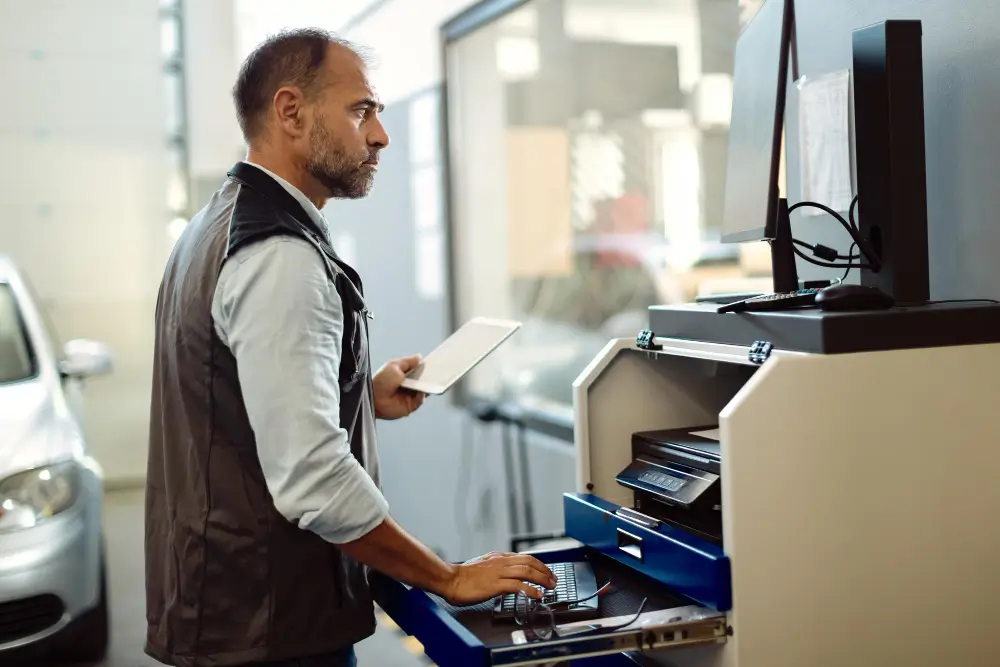
The best way to fix a printer problem is to prevent it from happening in the first place. Follow these simple tips to keep your Kyocera running happily:
- Keep it clean: Once a month, open the front of the printer. Use a clean, dry microfiber cloth to wipe away any stray black powder or paper dust.
- Use decent paper: Avoid using paper that is crinkled, damp, or incredibly thick. If you need to print on heavy labels or cardstock, always feed them through the front flap door (the Multi-Purpose Tray) instead of the main bottom drawer.
- Don’t rush the machine: If the printer is processing a massive document, don’t spam the “Print” button over and over. This jams the computer memory and can cause it to crash or freeze.
Conclusion
Now you understand the printer problems and solutions, Kyocera printers are highly reliable machines that are built to last for years. Most of the time, a scary-looking error code or a bad print job is just caused by a bit of dust, a crooked piece of paper, or a confused computer network.
By using the simple steps in this guide, you can solve almost any everyday printer glitch yourself in just a couple of minutes. You’ll save time, keep your office moving, and avoid making a costly call to an IT repair technician!
Visit our website to purchase your Kyocera printer. We provide you with free after-sales service also. If you are having trouble fixing the Kyocera printer problems or any other printers, try contacting us.
Frequently Asked Questions
faq of Common Printer Problems and Solutions
Why is my printer spitting out completely blank pages?
Make sure you remove the plastic sealing tape from your new toner cartridge before putting it into the machine. If the tape is still there, no ink can get onto the paper.
How do I find my printer’s network address (IP address)?
Go to the printer’s menu screen, press the System Menu or Counter button, and look for Report. Print out a Status Page. Your printer will print a sheet of paper that lists its network address clearly.
Do I need to replace the drum every time I change the toner?
No! This is the best part about owning a Kyocera. Their printing drums are made of tough ceramic and are designed to last for the entire life of the printer. You only change the plastic toner cartridge when the powder runs out.